How to Compress a PDF Without Losing Quality
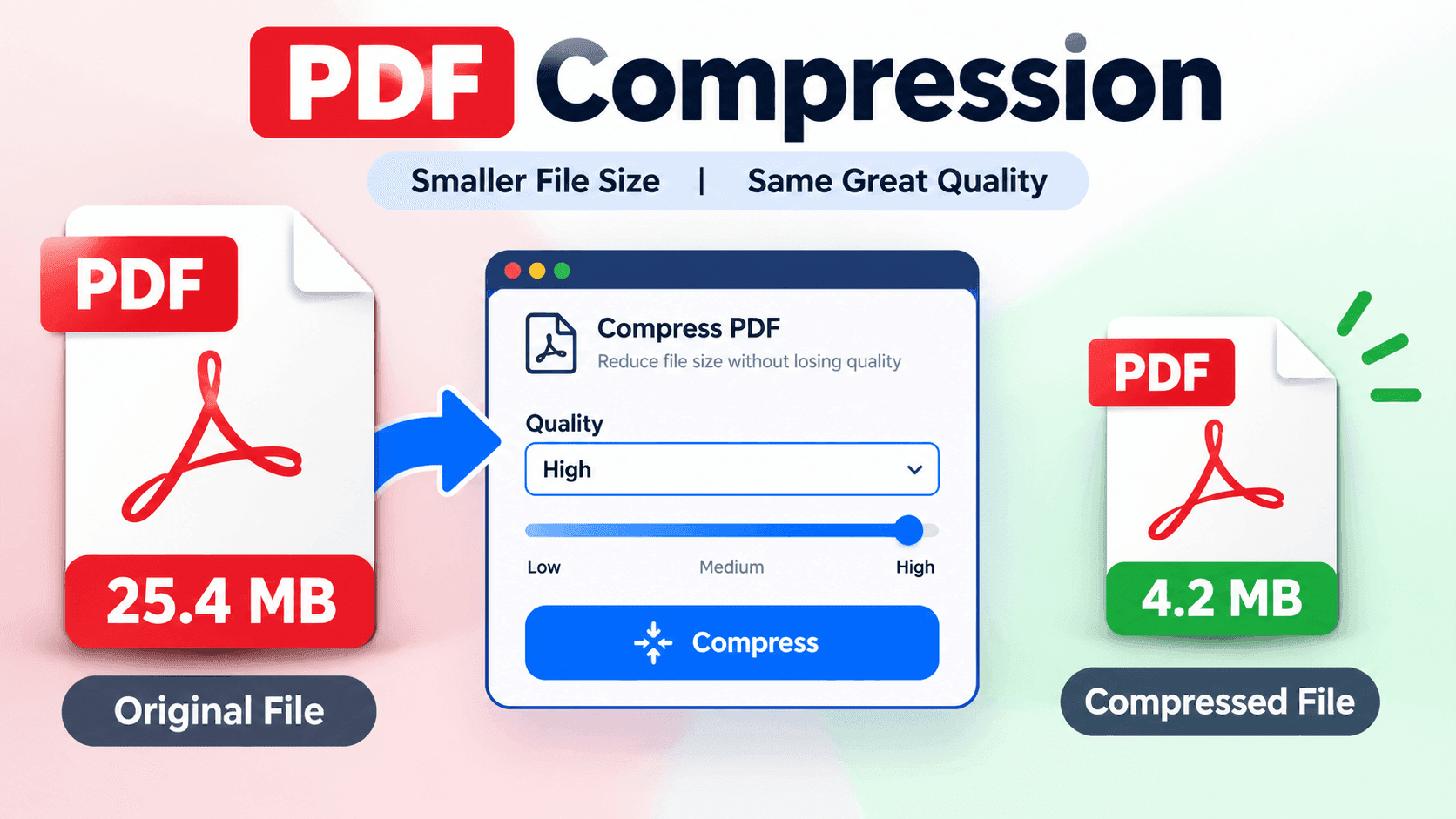
Almost everyone has hit this wall: you try to attach a PDF to an email, and it is rejected for being too large. Or a job portal caps uploads at 2 MB, and your scanned document is 14 MB. Knowing how to compress a PDF without losing quality solves both problems.
This guide explains why PDFs get so large, what compression actually changes, and how to reduce PDF size online with results that still look professional.
Why Are PDF Files So Large?
A PDF is a container that can hold text, images, fonts, vector graphics, and metadata. A few things usually make it heavy:
- High-resolution images. Photos and scans are the biggest cause. A single 300 DPI full-page image can take several megabytes.
- Embedded fonts. Each font used in the document may be stored inside the file so it displays the same everywhere.
- Scanned pages. A scanned PDF is essentially a stack of photos, not text, so each page is a full image.
- Hidden data. Metadata, unused objects, form fields, and old revisions can quietly add weight.
- Repeated export steps. Exporting from a design or office tool with “maximum quality” settings often produces larger files than necessary.
Knowing which of these applies to your file helps you pick the right compression level.
How PDF Compression Works
Most PDF compressors use a combination of these methods:
- Image compression. Images are re-encoded, often as JPEG, at a lower quality or resolution. This usually saves the most space.
- Downsampling. Image resolution is reduced, for example from 300 DPI to 150 DPI. This is fine for screen reading but less ideal for professional printing.
- Removing unused data. Duplicate objects, unused resources, and unnecessary metadata are stripped out.
- Font optimization. Only the characters actually used from a font are kept (subsetting).
- Structure optimization. The internal layout of the file is reorganized so it can be stored more efficiently.
Text and vector graphics are already compact. That is why text-only PDFs shrink only a little, while image-heavy PDFs can shrink dramatically.
Lossless vs. Lossy Compression
Understanding this difference is the key to keeping quality.
Lossless compression reduces file size without discarding any visual information. It removes redundant data and optimizes structure. The result looks identical to the original, but the size reduction is usually modest.
Lossy compression permanently discards some image detail to achieve much smaller files. At light levels the difference is nearly invisible. At aggressive levels you may notice blurry images, visible artifacts, or fuzzy text in scans.
For most everyday documents, a balanced approach works best: lossless optimization plus moderate image compression.
How to Compress a PDF Online: Step by Step
Using an online PDF compressor is the fastest option because it needs no installation and works on any device.
- Open the compression tool in your browser.
- Upload your PDF by selecting it from your device or dragging it into the upload area.
- Choose a compression level. If the tool offers options, pick a lower compression level for documents you plan to print, and a higher one for documents you will only read on screen or send by email.
- Start the compression and wait for processing to finish.
- Compare sizes. Check the new file size against the original.
- Download and review the file. Open it and scroll through every page. Check images, small text, charts, and signatures before sharing it.
Always keep your original file. If the result is too blurry, you can retry with a gentler setting.
Which Compression Level Should You Choose?
| SituationSuggested approach | |
| Emailing a report or invoice | Medium compression |
| Uploading to a website or portal with a size limit | Strong compression, then check readability |
| Printing brochures or photo-heavy documents | Light compression or lossless only |
| Archiving scanned documents | Medium compression, keep an original copy |
| Sharing on mobile or messaging apps | Strong compression |
There is no single perfect setting. The right level depends on how the file will be used.
Tips to Keep Quality High
- Start from the source file when possible. Exporting a smaller PDF directly from your original document is often better than compressing an already-compressed PDF.
- Avoid compressing repeatedly. Each lossy pass can reduce quality further.
- Resize images before inserting them. Do not place a 6000-pixel-wide photo into a document where it displays at a few inches.
- Use appropriate resolution. About 150 DPI is typically enough for screen viewing. Use 300 DPI only when print quality matters.
- Be careful with scanned text. Heavy compression can blur small print. Preview at 100% zoom before sending.
- Remove pages you do not need. Deleting blank or irrelevant pages is the easiest way to cut size with zero quality loss.
Common Mistakes to Avoid
- Choosing maximum compression by default. Smallest is not always best. Unreadable text defeats the purpose.
- Overwriting the original. Always save the compressed version under a new name.
- Skipping the final check. Signatures, stamps, and fine table lines are the first things to suffer.
- Ignoring file privacy. If your PDF contains contracts, IDs, or financial data, check how the tool handles uploaded files and whether they are deleted after processing.
- Expecting huge savings on text-only files. If a PDF is mostly text, there is little room to shrink it.
Other Ways to Reduce PDF Size
If compression alone is not enough, try combining it with other steps:
- Split the document into smaller parts and send them separately.
- Convert color pages to grayscale if color is not important.
- Flatten forms and annotations if the file does not need to stay editable.
- Use cloud sharing links for very large files instead of email attachments.
- Optimize images in the source document before exporting.
Frequently Asked Questions
Will compressing a PDF reduce its quality?
It can, depending on the method. Lossless compression keeps quality intact. Lossy compression trades some image detail for smaller size. Moderate settings usually look the same to the naked eye.
How much can a PDF be compressed?
It varies widely. Image-heavy and scanned PDFs can often shrink by more than half. Text-based PDFs typically shrink far less.
Is it safe to compress PDFs online?
It depends on the service. For sensitive documents, review the tool’s privacy policy and confirm how files are stored and deleted.
Can I compress a PDF on my phone?
Yes. Browser-based tools work on both Android and iOS without installing an app.
Why is my PDF still large after compression?
It may already be optimized, mostly text, or contain embedded fonts and vector graphics that cannot be reduced much. Try splitting the file or reducing image quality at the source.
Final Thoughts
Learning how to compress a PDF without losing quality comes down to understanding what makes the file large and matching the compression level to how you will use it. Start gently, preview the result, and only compress further if you need to. With the right settings, you can reduce PDF size significantly while keeping your document clear, professional, and easy to share.